Organizations using Microsoft 365 and SharePoint often have dozens of manual processes that depend on email, spreadsheets, paper forms, or people remembering what to do next. SharePoint business process automation can replace much of that manual work with digital forms, workflows, approvals, notifications, task assignments, and automated recordkeeping.
But where should you start?
The best first automation project is usually not the most complicated process or the one with the highest executive visibility. It is a process that happens frequently, has clearly defined steps, creates measurable manual work, and is relatively low risk to automate.
Based on our team’s experience helping more than 5,000 teams automate forms, workflows, and service processes across Microsoft 365 and SharePoint, these are 10 business processes worth considering first:
- Document approvals
- Leave and time-off requests
- Purchase requests and approvals
- Employee onboarding
- Expense reporting and reimbursement
- IT help desk requests
- Contract review and approvals
- Employee offboarding
- Access and permissions requests
- Compliance and policy sign-offs
The right choice depends on your organization’s volume, complexity, risk, and existing Microsoft 365 environment. For many organizations beginning their automation journey, leave requests or expense reporting can provide a fast, visible win.
What Is SharePoint Business Process Automation?
SharePoint business process automation is the use of SharePoint and related Microsoft 365 tools to automate recurring business processes such as requests, approvals, reviews, task assignments, notifications, and recordkeeping.
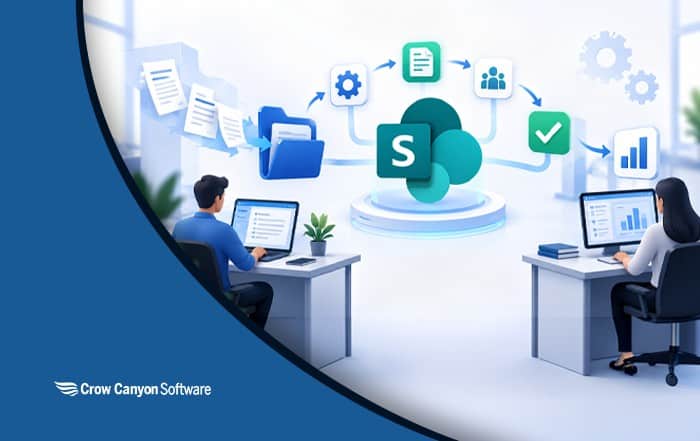
Instead of requiring employees to manually send emails, update spreadsheets, chase approvals, or track the status of a request, an automated SharePoint process can:
- Collect information through a form
- Store the information in SharePoint
- Route the request to the appropriate person
- Trigger approvals
- Assign tasks
- Send notifications through email or Microsoft Teams
- Update records automatically
- Escalate overdue items
- Maintain an audit trail
- Provide reporting and visibility into process status
SharePoint is particularly useful for business process automation because organizations can use SharePoint Lists and document libraries as structured repositories for business information and documents. Microsoft 365 also provides tools such as Power Automate, Power Apps, and Teams that can extend SharePoint-based processes.
The goal is not simply to move a paper form or email process online. Effective business process automation removes unnecessary manual steps and creates a repeatable process that is easier to manage, measure, and improve.
How Does SharePoint Business Process Automation Work?
Most SharePoint business processes follow a similar pattern:
- A request or event starts the process.
An employee submits a form, uploads a document, creates a list item, or triggers another defined event.
- SharePoint stores the information.
The request and related information can be stored in a SharePoint List or document library.
- Business rules determine what happens next.
The workflow determines who needs to review the request, what conditions apply, and which steps should occur.
- Approvals and tasks are assigned.
The appropriate manager, department, owner, or other stakeholder receives the required task or approval.
- Notifications keep the process moving.
Email or Microsoft Teams notifications can alert people when action is required.
- The system updates the record.
Approvals, decisions, dates, comments, and other information can be recorded automatically.
- The process ends with a defined outcome.
The request may be approved, rejected, completed, escalated, or sent to another process.
This basic model can be applied to processes across HR, IT, finance, procurement, legal, compliance, operations, and other departments.
The 10 SharePoint Processes You Should Automate First
There is no universal order that works for every organization. Instead, consider these 10 processes based on frequency, potential ROI, ease of implementation, business impact, and the ability to create a repeatable workflow.
1. Document Approvals
Document approval is one of the most common SharePoint automation scenarios.
Organizations frequently need managers, legal teams, compliance teams, executives, or other stakeholders to review documents before they can be published or used.
Examples include:
- Contracts
- Policies
- Marketing materials
- Procedures
- Financial documents
- Technical documentation
- Vendor documents
- Internal communications
A SharePoint-based workflow can automatically identify the appropriate approver, send notifications, track decisions, and record the approval history.
For example, a document uploaded to a SharePoint library could trigger a workflow based on its document type or metadata. The workflow can route it to the appropriate reviewer, notify the next person after approval, and maintain a record of the final decision.
Document approvals are valuable, but they may not always be the best first automation project. Processes involving executives, legal teams, or compliance can have a larger impact when something goes wrong. Organizations new to automation may want to start with a lower-risk process first.
2. Leave and Time-Off Requests
Leave requests are a straightforward business process with a high frequency of use.
A manual process might require an employee to email a manager, wait for approval, update a calendar, and notify HR. That creates unnecessary back-and-forth and makes it harder to track the status of requests.
An automated SharePoint process can:
- Collect the employee’s request
- Route it to the appropriate manager
- Notify the manager in Microsoft Teams or email
- Record the approval
- Update the request status
- Notify HR or other departments
- Maintain a history of requests
Because employees already understand the process, adoption is generally straightforward. That makes leave requests a strong candidate for an organization’s first SharePoint automation project.
3. Purchase Requests and Approvals
Purchase requests are another strong automation opportunity because they typically involve multiple people and clearly defined approval steps.
A typical process might look like:
Employee submits request → Manager approves → Finance reviews → Purchasing processes order → Request is completed
Without automation, employees may rely on email threads and spreadsheets to determine where a purchase request stands.
A SharePoint workflow can capture the request in a structured form, route it through the appropriate approval chain, notify stakeholders, and maintain a complete record.
Purchase request automation can also provide better visibility into spending, approval times, outstanding requests, and bottlenecks.
4. Employee Onboarding
Employee onboarding requires coordination across multiple departments.
A single new hire may require actions from:
- Human Resources
- IT
- The hiring manager
- Facilities
- Finance
- Security
- Other operational teams
A SharePoint onboarding workflow can start when HR submits a new employee record and automatically generate the required tasks.
For example:
HR submits onboarding request → IT receives account setup tasks → Facilities receives workspace tasks → Finance receives required setup tasks → Manager receives onboarding tasks → HR tracks completion
Instead of relying on email reminders and manually maintained checklists, everyone can see what they are responsible for and when it needs to be completed.
5. Expense Reporting and Reimbursement
Expense reporting is another high-volume process that can benefit from automation.
A typical automated workflow can collect:
- Employee information
- Expense date
- Expense category
- Amount
- Business purpose
- Receipts
- Manager approval
The workflow can then route the expense to the appropriate approver and finance team while maintaining the approval history.
Expense automation is particularly useful when employees currently rely on email, spreadsheets, or paper receipts. It can reduce manual data entry while giving finance teams a more consistent way to review and track expenses.
6. IT Help Desk Requests
IT support is one of the most recognizable business process automation scenarios.
Requests can arrive through email, forms, Microsoft Teams, or other channels. Without an automated process, IT teams may spend significant time manually sorting requests, assigning tickets, sending updates, and tracking outstanding work.
An automated SharePoint-based help desk process can:
- Capture the request
- Categorize the issue
- Assign it to the appropriate technician
- Notify the requester
- Track status
- Establish response or resolution targets
- Record the resolution
- Maintain a searchable history of previous requests
For organizations that want help desk processes to remain within their Microsoft 365 environment, a SharePoint-based approach can also keep ticket information within the organization’s Microsoft environment.
IT help desk automation is often a larger project than leave requests or expense reporting, so it may be better as a second-stage automation project depending on the organization’s requirements.
7. Contract Review and Approvals
Contract review is a natural candidate for workflow automation because contracts often require multiple stakeholders to review and approve the same document.
A process might include:
Contract submitted → Business owner review → Legal review → Finance review → Final approval → Signature → Record retention
Automation can ensure that each step occurs in the correct order and that the appropriate people are notified.
It can also provide visibility into:
- Current approval status
- Outstanding reviews
- Approval history
- Contract dates
- Related documents
- Process completion
Because contract processes can have significant legal and financial consequences, organizations should generally automate simpler workflows first and apply lessons learned before tackling more complex approval processes.
8. Employee Offboarding
Employee offboarding is similar to onboarding, but the consequences of missed steps can be particularly serious.
When an employee leaves, organizations may need to:
- Remove system access
- Recover equipment
- Transfer responsibilities
- Complete payroll tasks
- Notify facilities
- Preserve or transfer information
- Complete required HR documentation
An automated workflow can generate tasks for the appropriate departments and track completion.
For example, HR can initiate the offboarding process and automatically notify IT, facilities, finance, and the employee’s manager.
This creates a centralized record of the process and reduces the likelihood that an important step will be overlooked.
9. Access and Permissions Requests
Employees frequently need access to SharePoint sites, Teams, applications, shared resources, or other systems.
A manual request might involve an email to an administrator followed by a series of questions and approvals.
A structured SharePoint workflow can collect the required information and route the request to the appropriate resource owner.
The workflow can capture:
- Who is requesting access
- What access is required
- Why it is needed
- Who approved it
- When it was approved
- When access was granted
- When access should be reviewed or removed
This can create a more consistent process and improve visibility for security and compliance teams.
10. Compliance and Policy Sign-Offs
Organizations often need employees to acknowledge policies, procedures, security requirements, codes of conduct, or other documents.
Tracking these acknowledgments manually can become difficult as the number of employees and policies increases.
An automated process can distribute the appropriate policy, collect the employee’s acknowledgment, send reminders, escalate overdue items, and provide a dashboard of outstanding sign-offs.
The organization can also maintain a record of:
- Who acknowledged the policy
- What version they acknowledged
- When they acknowledged it
- Who has not completed the requirement
- Which departments have outstanding items
This makes compliance tracking more systematic and reduces reliance on spreadsheets and email reminders.
How to Choose the Best First Process to Automate
The process with the biggest theoretical ROI is not necessarily the best first project.
Instead, evaluate potential processes using five criteria.
1. Volume
How often does the process occur?
A process that happens every day or every week gives your team more opportunities to demonstrate the value of automation.
2. Manual effort
How much time do employees spend performing or managing the process?
Look beyond the person submitting the request. Consider the time spent reviewing, routing, following up, updating records, and reporting.
3. Process consistency
Does the process follow relatively predictable steps?
Automation works best when the organization can clearly define what should happen and who is responsible for each step.
4. Risk
What happens if the automation makes a mistake?
A low-risk process is generally a better first project than a workflow where an error could create significant financial, legal, security, or operational consequences.
5. Adoption
Will employees actually use the new process?
The best automation project is one that solves a problem users already experience. If employees understand the existing process and recognize the value of making it easier, adoption is more likely.
SharePoint Automation Tools: What Are Your Options?
SharePoint business process automation does not require a single technology. Organizations can combine several Microsoft 365 capabilities depending on the complexity of the process.
SharePoint
SharePoint provides Lists, document libraries, permissions, forms, and other capabilities that can serve as the foundation for many business processes.
It is particularly useful when the organization already stores the relevant business information in SharePoint.
Power Automate
Power Automate can connect SharePoint with other Microsoft 365 services and automate actions based on defined triggers and conditions.
It is a strong option for many straightforward workflows, particularly when an organization already has Power Platform expertise.
However, complex workflows can become increasingly difficult to design, troubleshoot, document, and maintain.
Power Apps
Power Apps can provide customized interfaces for business processes and can work with SharePoint and other data sources.
It can be useful when the process requires a more customized application experience rather than a basic form.
Microsoft Teams
Teams can provide another entry point and notification channel for automated business processes. Employees can receive notifications and, depending on the workflow, take action without leaving the environment they use for collaboration.
SharePoint-Based No-Code Platforms
Organizations with many business processes may also consider a no-code platform designed specifically for SharePoint and Microsoft 365.
This approach can be useful when business analysts need to build and maintain workflows without depending heavily on developers, or when the organization needs capabilities beyond simple native workflows.
The right choice depends on the number and complexity of processes, internal technical resources, governance requirements, and the organization’s Microsoft 365 environment.
When Should You Use a SharePoint Automation Platform Instead of Native Microsoft Tools?
Native Microsoft 365 tools can be a good fit for simple automation projects.
A dedicated SharePoint automation platform may become more attractive when an organization:
- Needs to automate many business processes
- Has complex multi-step approval workflows
- Wants business analysts to build and maintain applications
- Needs standardized forms and workflows across departments
- Is replacing legacy InfoPath forms
- Is replacing SharePoint Designer workflows
- Is migrating away from Nintex
- Needs more advanced workflow management
- Wants to minimize custom development
- Needs to support SharePoint Online and SharePoint on-premises environments
The important question is not whether one technology is universally better than another. It is whether the technology matches the organization’s processes, resources, and long-term automation strategy.
Common SharePoint Automation Mistakes to Avoid
Automating a bad process does not make it a good process.
Before building a workflow, look for unnecessary approvals, duplicate data entry, redundant notifications, and steps that exist only because the old manual process required them.
Other common mistakes include:
Automating too much at once
A large automation project can become difficult to manage. Starting with one clearly defined process allows the team to test its approach before expanding.
Ignoring the user experience
A technically correct workflow can still fail if the form is difficult to use or employees do not understand what happens after they submit a request.
Building workflows without ownership
Every automated process should have an owner responsible for its business rules, ongoing maintenance, and improvement.
Forgetting reporting
Automation should make it easier to understand the process, not simply move the same work into a digital system.
Track useful metrics such as volume, processing time, approval time, outstanding requests, and bottlenecks.
Failing to plan for exceptions
Real business processes rarely follow the ideal path every time.
Plan for rejected requests, missing information, reassignment, escalations, cancellations, and other exceptions before deploying the workflow.
SharePoint Business Process Automation in Action
A real-world example can help illustrate how organizations approach automation at scale.
Air Wisconsin had more than 400 InfoPath forms and related workflows that needed to be replaced. The organization selected NITRO Studio because it could support its SharePoint environment and allow business analysts to manage forms and workflows.
The organization began with processes such as leave requests and expense reporting before moving into more complex automation.
This illustrates an important principle: organizations do not have to automate everything at once. A successful first project can establish the processes, skills, and confidence needed to expand automation across the business.
Where NITRO Studio Fits
NITRO Studio is a no-code/low-code platform for building forms and workflow automation on SharePoint and Microsoft 365.
It can be used for processes such as the 10 examples covered in this guide, including requests, approvals, onboarding, document workflows, and other multi-step business processes.
NITRO Studio can be particularly useful for organizations that want business analysts to build and manage applications without traditional development, or organizations replacing legacy technologies such as InfoPath, SharePoint Designer, or Nintex.
For organizations with one or two simple workflows and existing Power Platform expertise, native Microsoft tools may be sufficient. Organizations with a larger portfolio of processes may benefit from evaluating a dedicated SharePoint automation platform alongside their existing Microsoft 365 tools.
The Bottom Line
SharePoint business process automation is not about turning every manual task into a complicated workflow.
The goal is to identify recurring processes where automation can eliminate unnecessary manual work, improve consistency, increase visibility, and make it easier for employees to get work done.
The 10 processes covered in this guide are strong candidates:
- Document approvals
- Leave and time-off requests
- Purchase requests and approvals
- Employee onboarding
- Expense reporting and reimbursement
- IT help desk requests
- Contract review and approvals
- Employee offboarding
- Access and permissions requests
- Compliance and policy sign-offs
For your first project, focus on a process with meaningful volume, measurable manual effort, clearly defined steps, manageable risk, and a good chance of user adoption.
Start with one successful process, measure the results, and use what you learn to expand automation to the next business process.
That is how SharePoint business process automation becomes a long-term business improvement strategy rather than just another technology project.